Install AdHole on Android
The app isn’t on Google Play: you download one file from this site and open it. Then, if you want the pages of your browsers cleaned as well, you install the certificate the app makes on the phone. Ten minutes, once.
- Version 1.5.8
- Android 8.0 or newer
- One file
- No account
Before you start
What you need.
- An Android device
- Android 8.0 or newer — that covers phones sold from 2017 onwards. One file fits ARM processors, 32- and 64-bit, and 64-bit x86. Cleaning the pages of your browsers needs Android 10 or newer.
- Room for the file
- The APK below, plus the same again once installed. The exact size is in the table on this page.
- A few minutes
- Android asks you a few questions along the way, and the app one. Almost nothing is irreversible: uninstalling removes the app and its data, and a certificate you added stays in Android until you take it out yourself.
The file this page describes
- File
- adhole-1.5.8.apk
- Version
- 1.5.8
- Size
- 54.1 MB
- SHA-256
- 1f9649765b9d6bfb30b524c8264bb56a38254df93dd4ff59efd11094536d3ccd
Installation
Install it, step by step.
Do this on the phone itself. If you’d rather check the file on a computer first, see the section below. The last three steps clean the pages of your browsers: stop at step seven and the app filters domain names, and nothing more.
-
Download the file.
Open the download page on the phone and take the Android file. Your browser will say this kind of file can harm your device: that warning appears for every file of this kind, and you choose to keep it.
-
Open it from your downloads.
Tap the finished download, in the browser or in the Files app. Android answers that this browser isn’t allowed to install apps.
-
Allow that browser to install apps.
Tap “Settings” in that message and turn on “Allow from this source”. The permission is granted to that one app, not to the phone as a whole, and you can turn it back off once you’re done.
-
Install, past Android’s warnings.
Go back, tap “Install”. On a phone with Google services, Play Protect may offer to scan the app, or advise against installing it: that is what it says about any app that doesn’t come from a store. Choose to install anyway.
-
Accept the terms of use.
The app opens on a first screen that states what it removes, what it doesn’t, and links to the terms of use and the privacy notice. Filtering starts only after you accept.
-
Allow the connection.
Android asks whether to allow a connection request. It’s the permission any app needs to filter traffic on the device; AdHole uses it as a local VPN that leads nowhere outside the phone. Accept, and a key icon appears in the status bar.
-
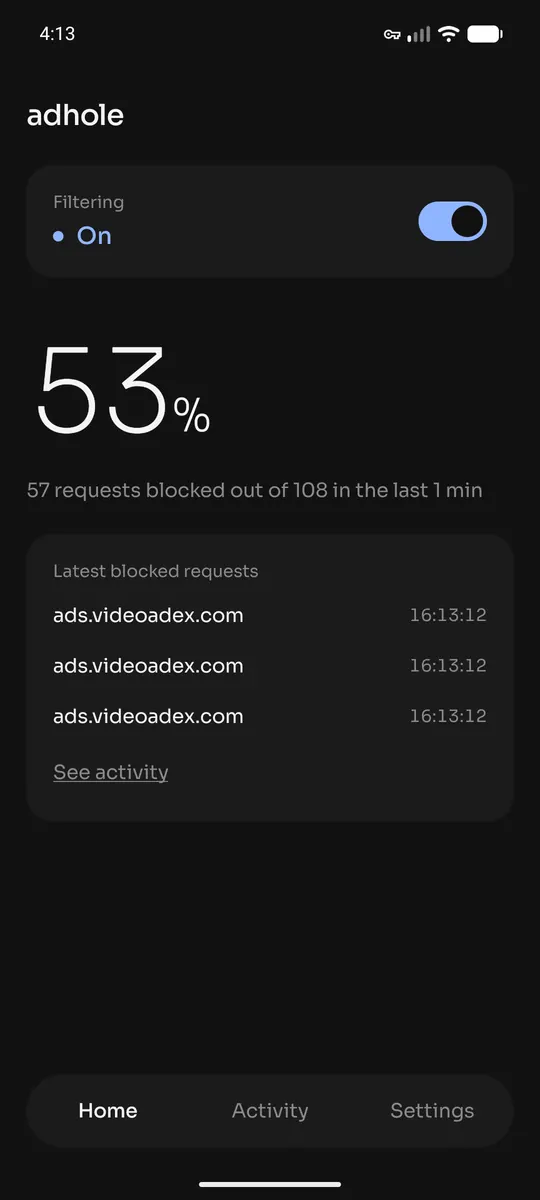
Check that it’s filtering.
The app’s home screen shows “Filtering” and “On” and, after a few minutes of normal use, the share of requests it has turned away. A notification says the app is filtering, for as long as it does: Android requires it.
-
Turn page cleaning on, if you want it.
In the app’s settings, turn on “Remove ads and cookie banners in browsers”, then tap “Install the certificate”: it makes a root certificate on the phone, named
adhole Root CA, writesadhole-racine.crtinto your Downloads and opens Android’s security settings. Its private key is created on the device and never leaves it: the publisher has no copy and can’t obtain one. Anyone who held that key could read your traffic, so never copy the app’s data folder. -
Install the certificate in Android’s settings.
In Android’s security settings: Encryption & credentials → Install a certificate → CA certificate (labels vary by manufacturer), then pick
adhole-racine.crtin your Downloads. You go through those screens once, and it is done. From Android 11 on there is no automatic install: these screens are the only way in. -
Choose the browsers to clean.
The app lists the browsers it finds, all on to start with, each with its own switch: turn off the ones you don’t want cleaned. In those, it opens the pages on the device to hide ad slots, refuse cookie banners and take the ads out of YouTube videos. Nothing else on the phone is opened, and banking, payment and health sites are never opened at all. Firefox needs one setting of its own, for third-party CA certificates: without it, it shows certificate errors, so switch it off.
Nothing else to do. The app starts filtering again by itself when you ask it to start with the device, in its settings. Until the certificate is installed, or with page cleaning switched off, nothing is opened: the app filters domain names exactly as before, and no browser ever shows a certificate error.
Checksum
Check the file before you open it.
Every file we publish has a SHA-256 checksum, shown on this page and in the SHA256SUMS file. If the file you downloaded has the same checksum, it is ours, byte for byte.
Android gives you no built-in way to work that out on the phone. To check, download the file on a computer, compare the checksum there, then transfer it to the phone over a cable or your own network.
On Windows
Open PowerShell and paste this, changing the path if you saved the file elsewhere. The “Hash” line must match the checksum on this page; PowerShell writes it in capitals, the letters are the same.
Get-FileHash "$env:USERPROFILE\Downloads\adhole-1.5.8.apk" -Algorithm SHA256On Linux
Download SHA256SUMS into the same folder, then run this. The line for the file must end with “OK”.
sha256sum -c SHA256SUMS --ignore-missingIf the checksums differ, don’t open the file. Delete it and download it again from the download page.
Android TV
On an Android TV box.
The same file installs on an Android TV box that accepts manual installs — a set-top box from an internet provider, for instance. Put the file on a USB stick or use the box’s own file manager, then open it the same way.
The app is built for a remote control as well as for touch: on a TV, its tabs move to a column on the left that the direction pad reaches directly.
A television whose system isn’t Android installs nothing. There, the way in is the TV’s DNS setting, pointed at a computer that runs AdHole.
Turn it off
Turn it off, or remove it.
- Pause the filtering
- Tap the switch on the app’s home screen. Your traffic goes back to normal at once. Tap it again to start filtering.
- Withdraw the permission
- In Android’s settings, under the network section, the connection AdHole holds can be removed. Filtering stops.
- Uninstall
- Press and hold the app’s icon, then uninstall it, like any other app. Its data folder goes with it: rules, lists, settings and the certificate’s private key.
- Remove the certificate
- Uninstalling doesn’t do it: the certificate stays in Android’s store. Take it out in Android’s security settings, under Encryption & credentials → User credentials (labels vary by manufacturer), where it appears as
adhole Root CA.
Limits
What stays visible.
With the certificate installed, the app cleans the pages of the browsers you leave on — and nothing else. The ads inside the YouTube app stay, and so do those of every other app: Android doesn’t let one app read another app’s encrypted traffic. Videos whose ads are stitched into the stream stay too, and a blocked rewarded ad in a game pays no reward. Firefox asks for one setting of its own, and page cleaning needs Android 10. The page below says what we measured, and when.